- How do I change the LPT port number assigned
to the SPP-100
- How do I reconfigure my SPP-100 if the
resources Windows 95/98/Me has allocated are not what I need?
- How do I reconfigure my SPP-100 if the
resources Windows 2000/XP has allocated are not what I need?
- My SPP-100 appears correctly installed on my
laptop but it cannot communicate with my parallel devices.
What should I do?
- I have a Dell Inspiron or other laptop that
does not have an onboard parallel port, and my SPP-100 is
installed correctly under Windows XP Pro/Home, but I cannot
communicate with my parallel device. What should I do?
- How do I configure the Sentinel System Driver
to work with Quatech's SPP-100 Parallel PCMCIA card?
- How do I configure configure my SPP-100 to
work with BioSystems Posicheck?
- Can I use my SPP-100 on a handheld computer?
- Your Windows CE drivers for my Parallel
PCMCIA card do not work with my handheld computer. What is
wrong
- Should I disable the Toshiba laptop built-in
infrared ports in the system BIOS before installing my PCMCIA
card?
- Under which OS is my parallel PCMCIA card
supported?
- Why can't I configure my SPP-100 for EPP
mode under Linux/Windows CE?
- How do I install my Parallel PCMCIA card
under Windows 2000/XP?
- What does it mean to have an unregistered
Windows XP driver? Why do I get a warning screen when I
install some Quatech drivers?
- How do I disable the Windows XP Driver
Signing check?
- Will my Parallel PCMCIA card work under
Windows 95/98/Me/NT/2000/XP that is controlled by a third
party PCMCIA card services (Softex, Card Wizard, etc.)?
- Why does Windows 95 change the basic
configuration of the SPP-100 to basic configuration 0002 when
I choose basic configuration 0003 for EPP mode?
- Why does Windows 95 configure the SPP-100,
but not assign a LPT number to the port?
- Where can I find help with using my SPP-100
under OS/2?
- Why are Quatech PCMCIA cards no longer
supported under DOS?
- I am using a computer running Card and
Socket Services. Can I still get the Quatech DOS drivers for
my PCMCIA cards?
- Where can I get HP Palmtop drivers for my
SPP-100?
- How do I completely remove all support for
the SPP-100 from Windows 95/98/Me/2000/XP?
- Can I use the Quatech SPP-100 with KEYLOK?
- How do I configure the SPP-100 for use with
the Hasp/Aladdin dongle?
- Why can't my SPP-100 communicate with Canon
Multipass devices?
- What does PCMCIA stand for?
Q1. How do I change the LPT port
number assigned to the SPP-100?
A. Under Windows 98 and Me the default LPT port number
assigned to the SPP-100 by Windows must be used. To change the
LPT port number under Windows 2000/XP, follow the directions
below.
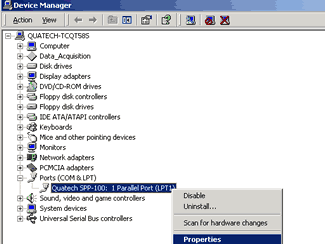
- Open Windows Device Manager
- Select "Ports (COM & LPT)"
- Right Click on "Quatech SPP-100: 1 Parallel Port (LPT1)"
- Select "Properties" from the options list as shown in the
figure below
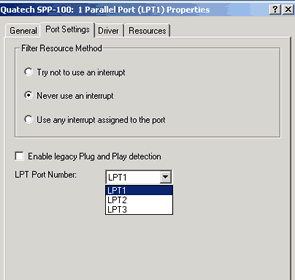
- Select the "Port Settings" tab in the Properties Window.
- Use the drop-down menu to choose the desired LPT port
number as shown in the figure below.
- Click "OK"
- Reboot your machine so the new settings can take effect.
Q2. How do I reconfigure my SPP-100 if
the resources Windows 95/98/Me has allocated are not what I
need?
A. Follow the instructions below.
- Insert the SPP-100 into the PCMCIA slot.
- Click Start
Click Settings
Click Control Panel
Double click on the System Icon
Click the Device Manager tab
Double click on the device group Ports (the Quatech SPP-100
device name should appear in the list of adapters)
- To see the resources for the SPP-100
Click on the SPP-100 device name, this will highlight the card
Click the Properties button
Click the Resources tab-- This will give the BASE ADDRESS for
the card as well as the IRQ setting.
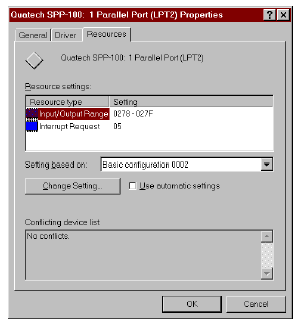 |
| Windows 95/98/Me Device
Manager Resources Tab |
The resources tab will also provide several predefined Basic
Configuration from which you can select. Note that earlier
versions of the SPP-100 have different configuration options
than do more recent versions. The two charts below show basic
configurations for cards Rev E and earlier and for Rev E2 and
later. To determine which revision of the card you have, look
at the label on the back of the SPP-100 PCMCIA Card.
|
Basic Configuration
Rev E and earlier
|
I/O Address |
Port Mode |
| 0 |
378H |
Standard |
| 1 |
278H |
Standard |
| 2 |
Variable |
Standard |
| 3 |
Variable |
EPP |
|
|
Basic Configuration
Rev E2 and later
|
I/O Address |
Port Mode |
Port Mode |
| 0 |
378H |
EPP |
7 |
| 1 |
278H |
EPP |
5 |
| 2 |
378H |
EPP |
Variable |
| 3 |
278H |
EPP |
Variable |
| 4 |
Variable |
EPP |
Variable |
| 5 |
378H |
EPP |
None |
| 6 |
278H |
EPP |
None |
| 7 |
Variable |
EPP |
None |
| 8 |
Variable |
Standard |
Variable |
| 9 |
Variable |
Standard |
None |
| A |
Mem |
|
|
|
When selecting a basic configuration from the Setting Based on
list, pay attention to the Conflicting device list
information. Try to select a configuration that displays No
Conflicts. If resource conflicts can be resolved by switching
to one of the predefined basic configurations, then skip down
to step 5.
- To change or modify any of the system resources showing a
conflict:
- Click on the Resource name
- Then click the Change Setting button
- An Edit Resource window will open up. Notice that I/O
address resources for basic configurations 0 and 1 are NOT
ALLOWED to be changed.
- Inside the Edit Resources window, click on the up/down
arrows to the right of the resource value. This scrolls you
through all of the allowable resources for the SPP-100. Pay
attention to the Conflict Information at the bottom of the
window. Select a resource value that reports No devices are
conflicting.
- Click OK to save your changes or Cancel to abort. Repeat
the above steps to resolve all resource conflicts. Once
satisfied with the settings make a note of the new settings
and click the OK button to accept. Clicking the Cancel
button does not save your changes.
- Windows 95/98/Me enumerates the SPP-100 to the first
available LPT port number. Use this Logical LPT Port name to
access the SPP-100 parallel port through your software
applications. This name is required by a Windows 95/98/Me
application when accessing a particular port.
- The SPP-100 will automatically be reconfigured to the new
resources specified. Any time a SPP-100 is inserted Windows
95/98/Me will attempt to configure the card at these resource
settings. Click the Use Automatic Settings to reset the
SPP-100 for automatic configuration.
Q3. How do I reconfigure my SPP-100 if
the resources Windows 2000/XP has allocated are not what I need?
A. Follow the instructions below.
- Insert the SPP-100 into the PCMCIA slot.
- Open with Windows System Properties window.
to access System Properties, double click the
System icon in the Windows 2000/XP control panel,
or right-click the My Computer icon on the
Windows 2000/XP desktop and select Properties
from the pull down menu.
- Click the Hardware tab located along the top of the
System Properties box. Click the Device Manager
button. This lists all the hardware devices connected to your
computer.
Look down the list of devices and locate the group
"Ports (COM & LPT)" and double click on it.
The SPP-100 device should now appear as a sub-item under
"Ports".
- To see the resources for the SPP-100
Click on the SPP-100 device name
Select "Properties" from the drop down list.
Click the Resources tab-- This will give the BASE ADDRESS for
the card as well as the IRQ setting.
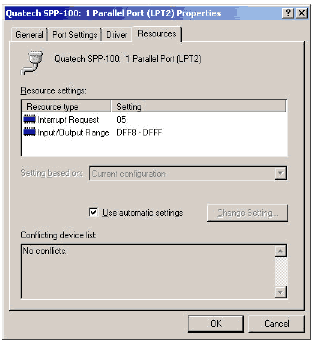 |
Windows 2000/XP Device
Manager
Resources Tab |
The resources tab will also provide several predefined Basic
Configuration from which you can select. Note that earlier
versions of the SPP-100 have different configuration options
than do more recent versions. The two charts below show basic
configurations for cards Rev E and earlier and for Rev E2 and
later. To determine which revision of the card you have, look
at the label on the back of the SPP-100 PCMCIA Card.
|
Basic Configuration
Rev E and earlier
|
I/O Address |
Port Mode |
| 0 |
Variable |
EPP |
| 1 |
278H |
Standard |
| 2 |
Variable |
Standard |
| 3 |
Memory |
|
|
|
Basic Configuration
Rev E2 and later
|
I/O Address |
Port Mode |
Port Mode |
| 0 |
378H |
EPP |
7 |
| 1 |
278H |
EPP |
5 |
| 2 |
378H |
EPP |
Variable |
| 3 |
278H |
EPP |
Variable |
| 4 |
Variable |
EPP |
Variable |
| 5 |
378H |
EPP |
None |
| 6 |
278H |
EPP |
None |
| 7 |
Variable |
EPP |
None |
| 8 |
Variable |
Standard |
Variable |
| 9 |
Variable |
Standard |
None |
| A |
Mem |
|
|
|
When selecting a basic configuration from the Setting Based on
list, pay attention to the Conflicting device list
information. Try to select a configuration that displays No
Conflicts. If resource conflicts can be resolved by switching
to one of the predefined basic configurations, then skip down
to step 6.
- To change or modify any of the system resources showing a
conflict:
- Click on the Resource name
- Then click the Change Setting button
- An Edit Resource window will open up. Notice that I/O
address resources for basic configurations 0 and 1 are NOT
ALLOWED to be changed.
- Inside the Edit Resources window, click on the up/down
arrows to the right of the resource value. This scrolls you
through all of the allowable resources for the SPP-100. Pay
attention to the Conflict Information at the bottom of the
window. Select a resource value that reports No devices are
conflicting.
- Click OK to save your changes or Cancel to abort. Repeat
the above steps to resolve all resource conflicts. Once
satisfied with the settings make a note of the new settings
and click the OK button to accept. Clicking the Cancel
button does not save your changes.
- Windows 2000/XP enumerates the SPP-100 to the first
available LPT port number. Use this Logical LPT Port name to
access the SPP-100 parallel port through your software
applications. This name is required by a Windows application
when accessing a particular port.
- The SPP-100 will automatically be reconfigured to the new
resources specified. Any time a SPP-100 is inserted Windows
2000/XP will attempt to configure the card at these resource
settings. Click the Use Automatic Settings to reset the
SPP-100 for automatic configuration.
Q4. My SPP-100 appears to have
installed correctly on my laptop, but it can't communicate with
my parallel devices. What can I do?
A. Quatech's SPP-100 is a 5V PCMCIA card and is known
to be incompatible with the new laptops listed below, all of
which do not provide enough power for the card. If you
experience this problem we suggest you contact your laptop
manufacturer to determine whether there is a voltage
incompatibility with the SPP-100. Note that the SPP-100 is
currently being redesigned for 3.3V power.
Current list of laptops providing only 3.3V power that are
incompatible with the SPP-100:
- Compaq Presario X6000 series
- Compaq Mobile Workstation NW824
- Compaq NX9020
- Dell Inspiron 6000
- HP ze4900
- HP DV1000
- Panasonic Toughbook CF-51 series
- Panasonic CF-72 series
- Panasonic CF-73 series
- Panasonic CF-M33
- Sony Vaio V505
- Toshiba Libretto 100
Q5. I have a Dell Inspiron or other
laptop that does not have an onboard parallel port and my
SPP-100 is installed correctly under Windows XP Home/Pro, but I
cannot communicate with my parallel device. What can I do?
A. You need to change the resources allocated to the
SPP-100 to remedy any system conflicts. Follow the steps below:
- From within Device Manager, expand the "Ports (COM & LPT)
tree
- Right mouse-click on "Quatech SPP-100" and select
"properties"
- Select the "Resources" tab
- Uncheck the "Use automatic setting" box
- Using the drop-down box try "Basic configuration 0001" or
select any configuration that displays "No Conflicts" in the
"Conflicts window." Be certain to avoid the 03F8 address, as
it is known to cause system conflicts.
Q6. How do I configure the Sentinel
System Driver to work with Quatech's SPP-100 Parallel PCMCIA
card?
A. Follow the directions below to configure the
Sentinel System Driver to work with a SPP-100 parallel PCMCIA
card under Windows 2000 and XP. The Sentinel System Driver 5.41
can be
configured to work with the SPP-100.
Hardware Configuration:
- From the Control Panel, double-click the System icon to
open the System Properties page.
- Click the Hardware tab and then the Device Manager button
to open the Device
Manager.
- Click the + sign next to Ports (COM & LPT) to expand the
tree.
- Double-click on SPP-100 to open the property page.
- Click on the Resources tab to see the resources used by
the adapter. The value listed next to the I/O range will be
the bus address the Sentinel software will be looking for, so
be certain to write this value down.
Sentinel Software Configuration
- Install the Sentinel System Driver.
- Start the driver configuration utility, SetupSysDriver.exe.
It is usually located at C:\Program Files\Rainbow
Technologies\Sentinel System Driver.
- Click the "Configure Driver" button.
- Then click the "Add" button.
- Enter the I/O address of the SPP-100 parallel port card
into the "Bus Address" field. Please leave all other options
at the default value.
- Click the "OK" button.
- The next screen shows that a User Created port has been
added.
- Click the Add button to close the dialog and then open the
File menu and choose Exit to close the Sentinel System Driver
Configuration Utility. The Sentinel System Driver should now
be configured to use the SPP-100.
Q7. How do I configure configure my
SPP-100 to work with BioSystems Posicheck?
A. First, be certain that you have Quatech's SPP-100
driver version 1.30 installed. (You can obtain this driver from
the website)
Then:
- Open with Windows System Properties window.
To access System Properties, double click the
System icon in the Windows 2000/XP control panel,
or right-click the My Computer icon on the
Windows 2000/XP desktop and select Properties
from the pull down menu.
- Click the Hardware tab located along the top of the
System Properties box. Click the Device Manager
button. This lists all the hardware devices connected to your
computer.
Look down the list of devices and locate the group "Ports
(COM & LPT)" and double click on it.
- The SPP-100 device should now appear as a sub-item under "Ports".
- To see the resources for the SPP-100 Click on the
SPP-100 device name, Select "Properties"
from the drop down list
- Click the Resources tab-- This will give the
BASE ADDRESS for the card as well as the IRQ setting.
- The resources tab will also provide several predefined
Basic Configuration from which you can select. Note that
earlier versions of the SPP-100 have different configuration
options than do more recent versions. Please uncheck the
Use Automatic settings box which will make the drop
down menu for the setting based on box available.
- From the drop down menu select configuration 0001
which will give you the 0278 address needed for the
Posicheck software to recognize the SPP-100.
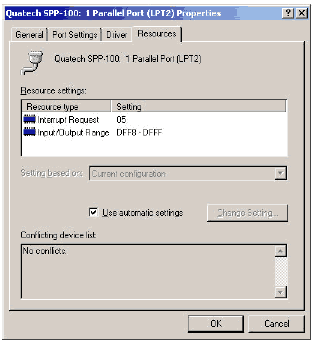 Windows
2000/XP Device Manager Resources Tab Windows
2000/XP Device Manager Resources Tab
Q8. Can I use my SPP-100 on a handheld
computer?
A. Quatech provides Windows CE drivers for the
SPP-100. As Windows CE is implemented differently in different
systems, the Quatech standard driver contains support files for
only the most popular CE-based handheld devices.
Click here for a list of supported devices. If the standard
driver does not work with your equipment, please submit our
Technical
Support Request form to get the appropriate files for your
system.
Quatech can also provide specialized drivers for embedded
systems implemented with Windows CE. OEMs interested in this
service should contact us with their specific requirements.
We also provide a free driver for the HP-Palmtop.
In addition, Quatech products will configure with Intel
compatible processors (80x86 based) using the client driver. You
should be able to use any card we manufacture as long as you are
using an 80x86 based processor. The enabler that we supply for
use when the client driver cannot be used only works with Intel
82365SL or compatible socket controller chips. These are our
only restrictive requirements.
Q9. Your Windows CE drivers for my
Parallel PCMCIA card do not work with my handheld computer. What
is wrong?
A. As Windows CE is implemented differently in
different systems, the Quatech standard driver contains support
files for only the most popular CE-based handheld devices.
Click here for a list of supported devices. If the standard
driver does not work with your equipment, please submit our
Technical
Support Request form to get the appropriate files for your
system.
Q10. Should I disable the Toshiba
laptop built-in infrared ports in the system BIOS before
installing my PCMCIA card?
A. Yes. Experience has shown that these infrared ports
can interfere with the proper installation of Quatech PCMCIA
cards. Once the installation is complete, these ports can be
enabled again without further problems
Q11. Under which OS is my parallel
PCMCIA card supported?
A. View the latest
OS support matrix for Parallel PCMCIA cards.
Q12. Why can't I configure my SPP-100
for EPP mode under Linux/Windows CE?
A. EPP mode is not supported under these operating
systems.
Q13. How do I install my Parallel
PCMCIA card under Windows 2000/XP?
A.
- Install your hardware according to the instructions in
your user's manual. Boot your machine. (You needn't shutdown
the machine to insert a PCMCIA card)
- The "Welcome to the Found New Hardware Wizard" window will
open.
- Click "Next" to continue.
- Follow the on-screen instructions. When prompted, point
Windows to the location in which the Quatech drivers are
stored-typically on the Quatech COM CD, or the folder on your
hard drive to which you downloaded the drivers.
Q14. What does it mean to have an
unregistered Windows XP driver? Why do I get a warning screen
when I install some Quatech drivers?
A. Microsoft has implemented a new driver signing
program. This program verifies that the driver will not cause
problems on the system. Although driver signing isn't a complete
indication that a driver is safe or bug-free, it's certainly
reasonable to assume that signed drivers are generally safer for
overall system health than unsigned drivers. In addition, driver
signing ensures against a Trojan horse or virus application
being introduced into a driver, or having the driver replaced
with other code.
However, just because a driver is unsigned DOES NOT mean that it
will not function properly in your system. An "unregistered"
driver is one that has not been officially tested and certified
by Microsoft. Unlike previous versions of Windows, Windows XP
warns users every time they try to install a driver that
Microsoft has not certified. Quatech thoroughly tests all
drivers before releasing them to our customers. The Microsoft XP
warning has nothing to do with the quality of our driver or its
ability to function properly in your system.
XP driver development is an ongoing process. We are in the
process of submitting all Quatech Windows XP drivers for review
by Microsoft, and we fully expect to receive certification for
most products in the coming months. However, every time we
update a driver it must be re-certified. Until this
certification process is complete, the updated driver will
remain unsigned. Because we want to provide the best possible
service for our customers, we release our XP drivers prior to
receiving Microsoft certification--this gets it into your hands
faster! However, we will always continue to make the most recent
signed driver available even if there are more recent unsigned
updates.
When you see this warning during an installation of a Quatech's
Windows XP driver, simply tell Windows that you want to install
the driver anyway, and continue with the standard installation
process.
Q15. How do I disable the Windows XP
Driver Signing check?
A. To disable Windows XP driver signing warnings,
follow the steps below:
- Double click on the System icon in Control Panel.
- Left click on the Hardware tab.
- Left click on the
Driver Signing button. (click here for a screen cap of the
Driver Signing Options Window)
- Choose the Ignore option. Click on O.K. and then Apply and
O.K.
- Windows will not warn anymore about driver signing.
Q16. Will my Quatech Parallel PCMCIA
card work under Windows 95/98/Me/NT/2000/XP that is controlled
by a third party PCMCIA card services (Softex, Card Wizard,
etc.)?
A. Quatech developed its drivers to work directly with
the ones found on the Windows operating systems. Enabling these
original Windows's drivers will provide quick and easy
installation of all Quatech's PCMCIA cards. We cannot predict
how or if our cards will function when used with another
company's card services.
Q17. Why does Windows 95 change the
basic configuration of the SPP-100 to basic configuration 0002
when I choose basic configuration 0003 for EPP mode?
A. For some reason we cannot explain, Windows 95 does
this. We have tried to correct this problem, but Win95 refuses
to do anything differently. We believe that it is some inherent
problem with Win 95, but we cannot fully prove this. When
configuration 0003 is initially chosen you will see a memory
allocation range for the configuration where the I/O range and
IRQ usually are. Click OK and then restart the system, as Win95
wants to do. Allow the machine to boot normally and check the
configuration again. You should see that the configuration has
been changed to basic configuration 0002. A valid I/O range and
IRQ have been chosen for the card. Although the card does not
appear to be in EPP mode, the card is ready to function as a
standard EPP port. If you find that the card does not function
properly, please contact us by submitting the
Technical
Support Request Form.
Q18. Why does Windows 95 configure
the SPP-100, but not assign a LPT number to the port?
A. Windows 95 handles enumerating PCMCIA COM ports
(i.e. PCMCIA modems) much better than the case of parallel
ports. After initial installation or any configuration changes
of the SPP-100, Windows 95 may fail to assign a logical LPT
number to the parallel port. The solution to this problem is to
shut down and restart Windows 95 with the SPP-100 installed.
Q19. Where can I find help with using
my Parallel PCMCIA card under OS/2?
A. Though OS/2 is becoming increasingly less popular,
Quatech knows that there are many dedicated users out there, and
we are committed to continued support of OS/2. See our
OS/2
tip sheet for answers to common questions about
installation, un-installation, configuration, and
troubleshooting.
Q20. Why are Quatech PCMCIA cards no
longer supported under DOS?
A. Quatech DOS support for PCMCIA cards was built to
work with Card and Socket Services from System Soft. Newer
laptops do not use this software, and System Soft is no longer
supporting it. If you have a computer with Card and Socket
Services installed you should be able to use Quatech's cards
under DOS. However, as there is no longer any support for the
program, we can no longer continue to support our cards under
DOS.
Q21. I am using a computer running
Card and Socket Services. Can I still get the Quatech DOS
drivers for my PCMCIA cards?
A. Yes. Quatech DOS drivers for Communication PCMCIA
cards can be found on the Support for
Discontinued Product page. These drivers are for use at your
own risk, and our technical support team cannot provide any help
with installation, configuration, or troubleshooting. However,
our tip sheet
"PCMCIA for DOS" may provide some useful suggestions.
Q22. Where can I get HP Palmtop
drivers for my SPP-100?
A. HP Palmtop Drivers can be downloaded
here.
Q23. How do I completely remove all
support for the SPP-100 from Windows 95/98/Me/2000/XP?
A. Removing support for the SPP-100 out of Windows is
a two step process:
- Clear the Registry: Windows maintains a registry of
all known hardware installed in your computer. Use Windows
Device Manager and "Remove" the SPP-100 adapter from the
system. This action clears the registry of all entries and
configurations for the SPP-100.
- Remove the SPP-100 INF File: The installation
process of the SPP-100 used an "INF" configuration file to
install support for the SPP-100 into the Windows registry. A
copy of the SPP-100.INF file from the installation disk was
placed in the \WINDOWS\INF directory during the SPP-100
installation. However, the file has been renamed to OEMxx.INF
(OEM1.INF, OEM2.INF, etc.). Carefully compare the SPP-100.INF
file on the installation disk with each of the OEMxx.INF files
and find the match. Then make a backup of the OEMxx.INF file
containing the SPP-100 configuration information and delete
the file from the \WINDOWS\INF directory.
Note: The subdirectory \WINDOWS\INF has by
default the hidden file attribute applied to it. To view
hidden files and directories, start the Windows Explorer and
from the menu select View|Options. An options dialog
box will open. Click on Show all files and then click
OK to accept the change. Once changes inside the INF
directory have been completed, you may want to change
Explorers view option back to Hide files of these types.
By hiding many of the system files in Explorer, the chances of
accidentally deleting or modifying these key files is reduced.
Q24. Can I use the Quatech SPP-100
with KEYLOK?
A. No. According to KEYLOK tech support, their dongle
is NOT compatible with the SPP-100 or any other pcmcia parallel
card.
Q25. How do I configure the SPP-100
for use with the Hasp/Aladdin dongle?
A. The Hasp/Aladdin dongle has a configuration utility
that needs to be configured for the SPP-100 base address.
To do this, first set the SPP-100 port to LPT1 with a manual
I/O address range of 478 - 47F (automatic setting chooses FFF8 -
FFFF).
Then use the HASP Hinstall.exe application to install the
driver (this is the command line version of HDD32.exe). Use the
command line switch -lpt1=478 when running Hinstall. The dongle
should then be visible.
Q26. Why can't my SPP-100 communicate
with Canon Multipass devices?
A. Canon multipass devices such as printers and
scanners require a parallel port functioning in ECP mode. The
SPP-100 does not support ECP mode (It is an EPP parallel port
card.)
Q27. What does PCMCIA stand for?
A. Personal Computer Memory Card International
Association
This group is "an international standards body and trade
association with over 200 member companies that was founded in
1989 to establish standards for Integrated Circuit cards and to
promote interchangeability among mobile computers where
ruggedness, low power, and small size were critical." (Excerpted
from the pcmcia.org site). Its main job is to oversee the
continued development of portable peripherals built on the
PCMCIA form factor.
|